Importing customers and products from Excel
You can import customer, product and stock lists from your old software into OptikCore as an Excel (.xlsx) or CSV file. No record is skipped silently during the import: rows with errors are listed separately so you can fix them and upload again.
1. Before you start
The first row of your file must contain the column headings. You can upload up to 50,000 rows and 20 MB in one file; split larger lists.
2. Download the template
On the Customers list, click the Import button at the top right and choose Download template. Required fields in the template:
| Column | Description |
|---|---|
| Full name | Required |
| Phone | In 05XX XXX XX XX format; duplicate numbers are merged |
| Date of birth | Optional · DD.MM.YYYY |
| SMS consent | Yes / No · checked separately with İYS |
3. Upload the file
Drag the file into the window. OptikCore shows the first 50 rows as a preview.
4. Map the columns
OptikCore recognises column names and maps them automatically. For columns that don't match, pick a field from the drop-down or choose Skip.
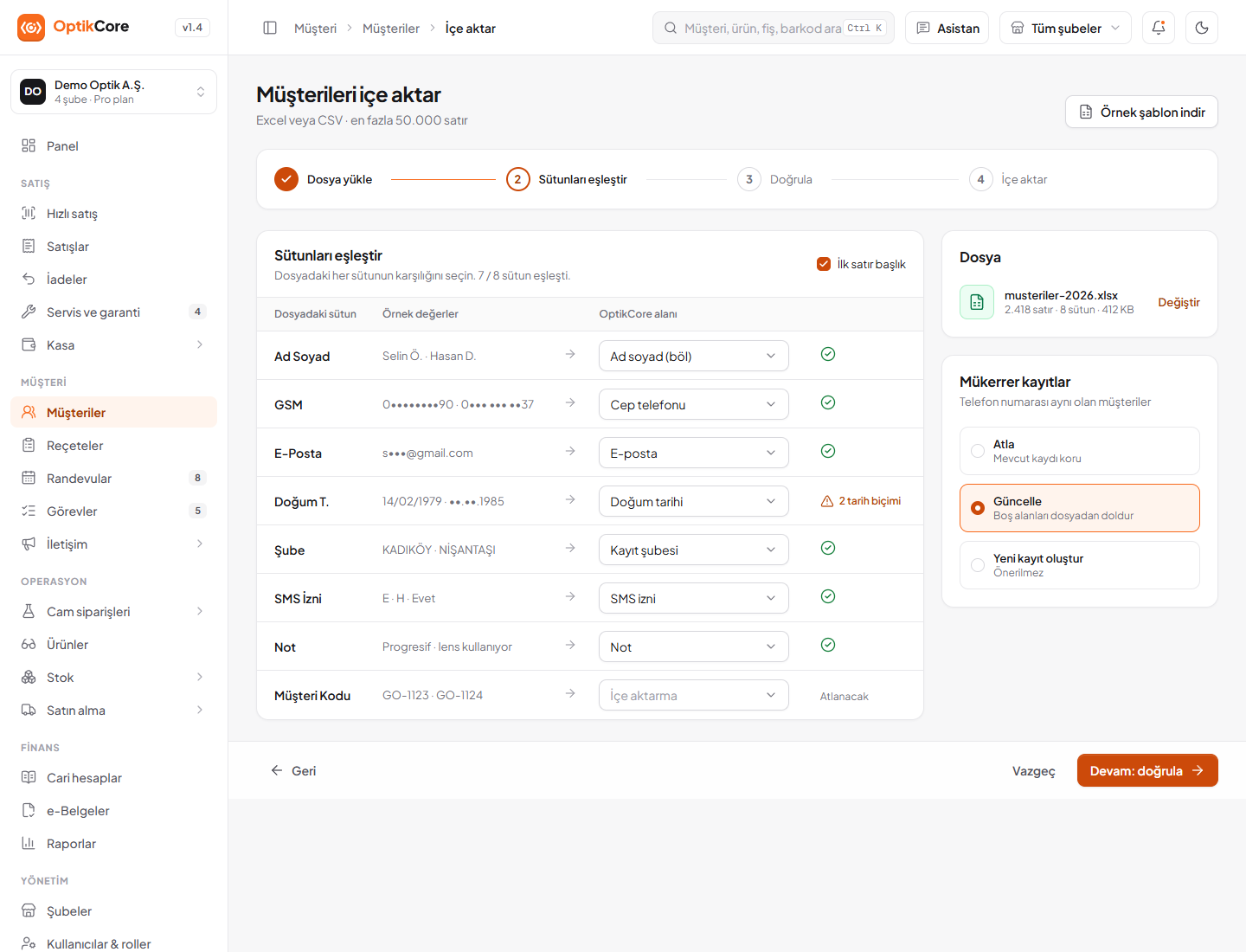
5. Rows with errors
On the validation screen, rows with errors are shown in red. Use Download errors to get just those rows as Excel, fix them and upload again. Rows without errors are imported straight away.
6. Common problems
- If Turkish characters look broken, save the file as UTF-8 CSV
- If the date column isn't recognised, convert it to DD.MM.YYYY
- If the same phone number appears twice, the records are merged into one customer